Hosted WebForm
Tutorial
Adding Doteasy Hosted WebForm to Your Account
-
1
Login to your
Member Zone at
https://member.doteasy.com
-
2
Click on the
Add Hosted WebForm (Free!) link.

-
3
Select the desired WebForm Plan. When you are ready, click on the
Next Step button.

-
4
Confirm the activation request by clicking on the
Submit Request button.

Signing into your WebForm Account
Changing Your Email Address
-
The email address is where notifications will be sent. Notifications will be sent if you have opted �Yes� to
Email Notification on the
Form Settings window.

-
1
Click on
Account Profile.

-
2
Click on
Change E-mail Address.

-
3
Enter the new email address and click on the
Submit button when you are ready.

Changing your WebForm Password
-
1
Click on
Account Profile.

-
2
Click on
Change Password.

-
3
Enter your new password and click on the
Submit button when you are ready.

WebForm Plans
The Doteasy Hosted WebForm comes in three different plans: Basic, Enhanced and Professional.
For information on each plan, including features, please visit the Plan Features page.
-
1
Click on
Account Profile.

-
2
Click on
Upgrade Plan.

-
3
You will be redirected to your Doteasy Member Zone. Select the desired WebForm plan. Click on the
Next Step button when you are ready.

-
4
Confirm the payment details and the upgrade request. When you are ready, click on the
Submit Request button.

Form Settings: Email Confirmation
You can create a custom email confirmation that will be sent to your form users to let them know their form has been submitted.
This function is only applicable if there is an "Email Address" field on your form and the form user has provided a valid email address.
-
1
On your WebForm admin homepage, click on the form you wish to edit the Email Message.

-
2
Click on the
Settings link.

-
3
The
Forms Settings window will open. Click on the
Confirmation tab.

-
4
Enter the email message in the
Email Message box.

-
5
When you are ready, click on the
Save button.

Form Settings: Page Message
You can create a custom message to your form users to let them know their form has been submitted. This message will be displayed once the form user has clicked on the "Submit" button on your webform. If you leave this field blank, the default Doteasy "Form Submitted" message will be displayed.
-
1
On your WebForm admin homepage, click on the form you wish to edit the Page Message.

-
2
Click on the
Settings link.

-
3
The
Forms Settings window will open. Click on the
Confirmation tab.

-
4
Enter the email message in the
Page Message box.

-
5
When you are ready, click on the
Save button.

Form Settings: Page Redirection
You can redirect your form users to a page of your choice upon the submission of a form. You may consider using this function if you have created a specific landing page or Thank-You page for your form users.
-
1
On your WebForm admin homepage, click on the form you wish to edit the Page Message.

-
2
Click on the
Settings link.

-
3
The
Forms Settings window will open. Click on the
Confirmation tab.

-
4
Enter the URL of the redirection page in the
Page Redirection field. Make sure to include the http:// prefix in the URL
(for example, http://www.yourdomain.com).

-
5
When you are ready, click on the
Save button.

Editing a Form (Form Fields)
-
1
On your WebForm admin homepage, click on the form you wish to edit.

-
2
Click on the
Edit link.

-
3
To edit the field, click on the item in the Preview window.

-
4
. Click on the item that requires editing. When you are ready, click on the
Save Settings button.

-
5
Repeat Steps 2-4 to add additional fields as needed. To re-arrange a field, simply drag and drop it to the desired position.

-
6
When you are ready, click on Save.

Editing Form Settings
-
1
On your WebForm admin homepage, click on the form you wish to edit.

-
2
Click on the
Settings link.

-
3
The
Forms Settings window will open. You can edit the settings on the
General,
Confirmation and
Notification tabs.

-
4
When you are ready, click on Save.

CAPTCHA Spam Settings (for Enhanced and Professional Plans)
If you are currently subscribed to the Doteasy Hosted WebForms Enhanced or Professional plans, you have the option of adding a CAPTCHA spam control filter on your email forms.
After you have created your webform, you will find the Security Text Image setting in your Form Settings window.

Publishing Your Email Form
-
1
On your WebForm admin homepage, click on the form you wish to publish.

-
2
Click on the
Go Online button.

-
3
The WebForm is now ready to be accessed online. If you haven�t yet done so, you can now copy and paste the form plug-in code onto your webpage.

WebForm Plug-In Code
-
1
On your WebForm admin homepage, click on the form you wish to obtain the plug-in code.

-
2
Click on the
Get Plug-in Code link.

-
3
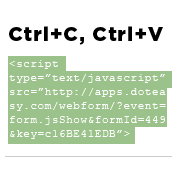
Copy-and-paste the code onto your web page.

WebForm Secure Plug-In Code (for Enhanced and Professional Plans)
If you are currently subscribed to the Doteasy Hosted WebForms Enhanced or Professional plans, you have the option of encrypting your form data.
-
1
On your WebForm admin homepage, click on the form you wish to obtain the plug-in code.

-
2
Click on the
Get Plug-in Code link.

-
3
Click on the
Secure Version tab and copy-and-paste the code onto your web page.

View Form Data - Grid View
-
1
On your WebForm admin homepage, click on the form you wish to obtain view or manage data.

-
2
Click on the
View Data link.

-
3
Your form data will be presented in the
Grid View format.

-
4
You can rearrange the columns by dragging and dropping it into the desired location.

-
5
You can right-click on the column heading for more options, including sorting, hiding and locking the column.

-
6
You can also modify the data. Double-click on the data you want to modify.

All modified data will be displayed with a
.

*Note. You can use the Printer Friendly View button to print the data entry.

View Form Data - Entry View
-
1
On your WebForm admin homepage, click on the form you wish to obtain view or manage data.

-
2
Click on the
View Data link.

-
3
Click on the
Entry View tab.

-
4
Use the
Prev and
Next buttons to navigate.

-
5
You can also modify the data by overwriting the information in the text fields.

*Note. You can use the Print Entry button to print the data entry.

Print Form Data
-
1
On your WebForm admin homepage, click on the form you wish to print form data.

-
2
Click on the
Print Data link.

-
3
Click on the
Print Now button.

Export Data in CSV (for Enhanced and Professional Plans)
-
1
On your WebForm admin homepage, click on the form you wish to export form data.

-
2
Click on the
Download CSV link.

-
3
Select the desired action.

Data Download in PDF
-
1
On your WebForm admin homepage, click on the form you wish to download form data.

-
2
Click on the
Download PDF link.

-
3
Select the desired action.